
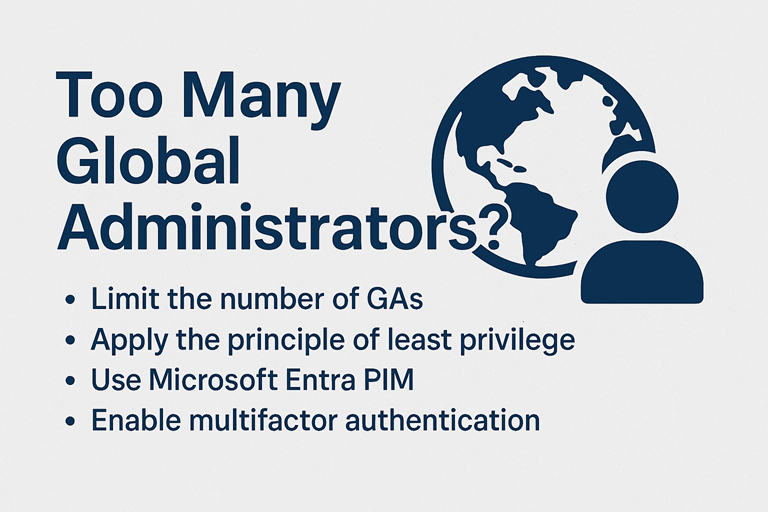
Best Practices for Microsoft Entra ID for managing Global Administrators
Updated: September 9, 2025
Why Limit Global Admins?
Global Admins have full control over Microsoft Entra ID (formerly Azure AD) and all Microsoft services that rely on Entra identities, including Microsoft 365, Intune, and Azure. This makes them high-value targets for attackers.
Risks of Excessive Global Admins:
- Increased exposure to credential theft
- Greater potential for accidental or malicious changes
- Difficulty in auditing and managing privileged access
Microsoft’s Recommendations
Microsoft advises the following best practices for managing privileged roles in Entra ID:
- Apply the Principle of Least Privilege
Assign only the minimum permissions necessary for users to perform their tasks. - Use Privileged Identity Management (PIM)
Enable just-in-time (JIT) access for Global Admins and other privileged roles. - Enable Multifactor Authentication (MFA)
Require MFA for all admin accounts to reduce the risk of unauthorized access. - Conduct Regular Access Reviews
Use Entra’s built-in tools to review and remove unnecessary role assignments. - Create Emergency Access Accounts
Maintain two cloud-only break-glass accounts with permanent Global Admin rights for emergencies.
What Is Microsoft Entra Privileged Identity Management (PIM)?
PIM is a feature of Microsoft Entra ID that allows you to:
- Assign time-bound or approval-based access to roles
- Require MFA, justification, or approval before role activation
- Get notifications and maintain audit logs for all activations
- Prevent removal of the last active Global Admin
Using PIM to Manage Global Admin Access
Instead of assigning Global Admin permanently, make users eligible for the role and require them to activate it only when needed.
How to Assign Global Admin Using PIM:
- Go to Microsoft Entra Admin Center > ID Governance > Privileged Identity Management > Microsoft Entra roles
- Select Global Administrator > Add assignments
- Choose the user and set the assignment type to Eligible
- Configure activation settings:
- Require MFA
- Set activation duration (e.g., 4 hours)
- Require approval and justification
- Save and monitor usage via audit logs
Additional Security Enhancements
- Use Role-Assignable Groups: Assign roles to groups instead of individuals for easier management.
- Implement Conditional Access Policies: Require phishing-resistant MFA or passkeys for role activation.
- Monitor with Identity Secure Score: Use Microsoft Entra’s recommendations to continuously improve your security posture.
Summary
Limiting the number of active Global Admins and using Microsoft Entra PIM is essential for securing your identity infrastructure. By following Microsoft’s best practices, you can:
- Reduce risk
- Improve compliance
- Maintain operational control